
Motion News
Data Story Maker: Professional Data Visualization for Premiere Pro and After Effects


Bringing broadcast-quality animated charts to your video editing workflow
As a developer and video editor, I’ve spent countless hours wrestling with the challenge of creating data visualizations for video projects. Whether it’s election results for news segments, corporate sales charts, or viral bar racing animations for social media, the traditional workflow has always been the same: break your editing rhythm, export to a specialized tool, manually animate everything, then import back and hope nothing breaks.
That’s why I built Data Story Maker — a comprehensive solution that lives directly inside Adobe Premiere Pro and After Effects, designed to transform CSV data into professional animated charts in minutes, not hours.
Why I Created Data Story Maker
The catalyst was simple frustration. Clients would send spreadsheets. I’d need animated charts. My options were limited and time-consuming: spend hours keyframing in After Effects, use template systems that never quite fit the data, or settle for static graphics that didn’t tell the story effectively.
I wanted something different — a tool that understood the actual workflow of video editors and motion designers. Something that could generate broadcast-quality visualizations without leaving the creative applications I use every day. After extensive development and testing with real production projects, Data Story Maker evolved into exactly that tool.
What Makes Data Story Maker Different
Native Integration with Your Workflow
Data Story Maker isn’t a standalone application or a web service that requires export/import cycles. It’s a CEP (Common Extensibility Platform) extension that integrates directly into both Premiere Pro and After Effects. This means:
- No application switching – Stay in your timeline while creating charts
- Direct project integration – Charts save to your project directory automatically
- Timeline-ready output – Generated videos drop directly into your sequence
- No “media offline” errors – Everything stays connected to your project
This workflow integration is critical. When you’re on a deadline — whether it’s a news segment going live in an hour or a corporate presentation due tomorrow morning — every minute counts.
Comprehensive Chart Library
Data Story Maker includes eight chart types that cover virtually every data visualization need in video production:
Bar Charts – Horizontal and vertical orientations with smooth animated builds. Perfect for comparisons, rankings, and survey results.
Line Charts – Multi-series support with elegant drawing animations. Ideal for showing trends, growth patterns, and time-series data.
Pie Charts – Clean percentage breakdowns with animated rotations and customizable color schemes.
Bubble Charts – Multi-dimensional visualizations with physics-based positioning and scaling animations that bring complex data relationships to life.
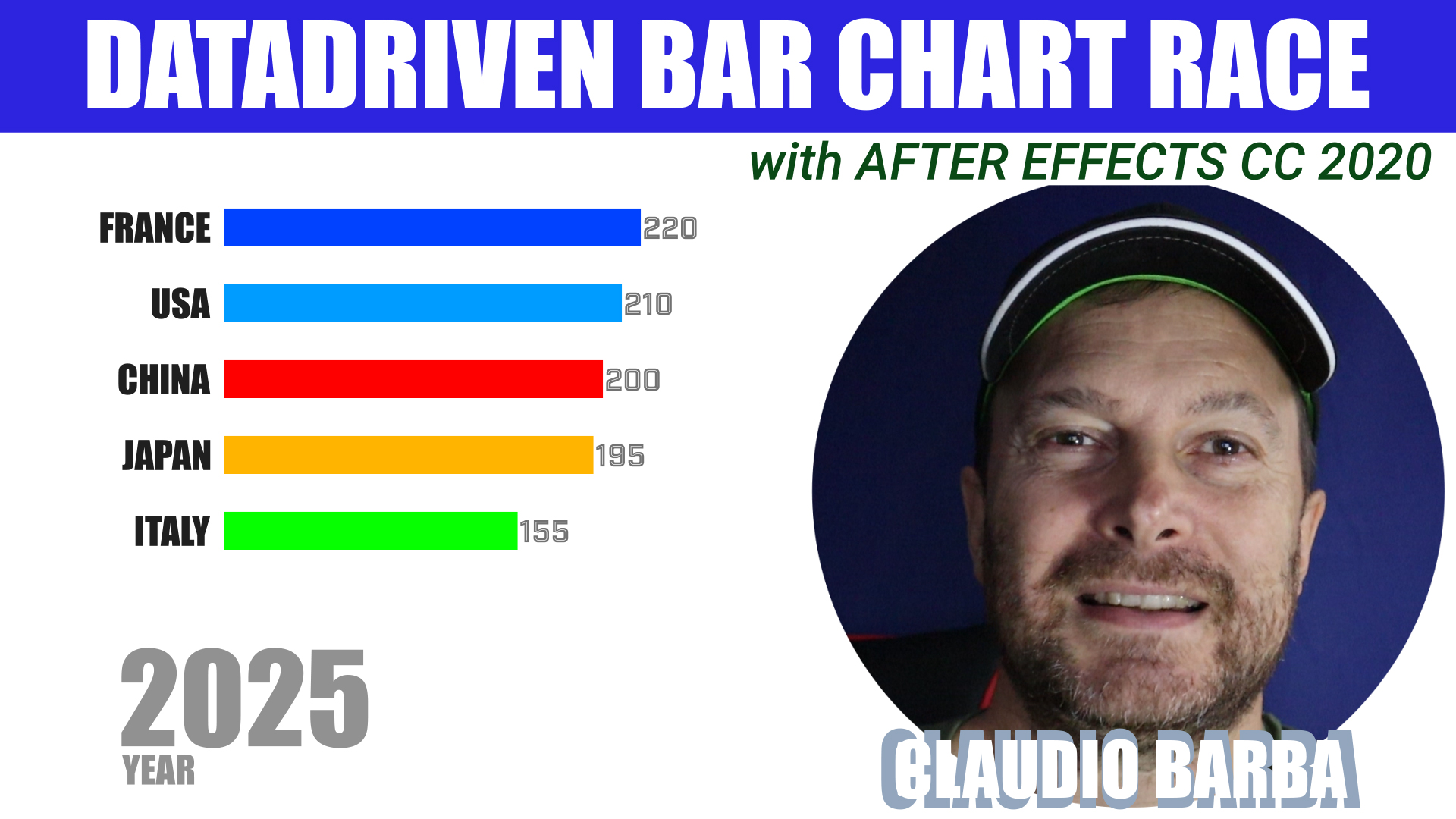
Bar Racing Charts – The viral sensation everyone wants. Smooth position transitions, automatic sorting, and dynamic color assignments create compelling competition animations.
Countdown Timers – Precision time-based animations with customizable formatting for event coverage, product launches, or deadline visualization.
Timeline Visualizations – Events plotted across time with markers, labels, and connecting elements for historical content or project planning.
Animated Number Displays – Statistics that count up with easing, perfect for impact numbers and key performance indicators.
Built on D3.js for Precision
Under the hood, Data Story Maker leverages Various graphic JavaScript canvas libraries — the industry-standard JavaScript library for data visualization. This gives you:
- Mathematically precise scaling and positioning
- Smooth interpolation between data states
- Professional rendering quality that matches broadcast standards
- Reliable calculations even with complex datasets
But you don’t need to know JavaScript or write any code. I’ve wrapped all that complexity in an intuitive interface.
How Data Story Maker Compares
To understand Data Story Maker’s position in the market, it’s worth looking at the alternatives:
DataStoryteller by Digital Anarchy
DataStoryteller is priced at $199 as a one-time purchase and offers bar, line, scatter/bubble charts along with US and world map visualizations. It’s a solid tool that works across multiple platforms including Final Cut Pro and DaVinci Resolve.
Key differences:
- Pricing model – DataStoryteller requires a $199 upfront investment (or is included in Digital Anarchy’s $199/year subscription bundle). Data Story Maker uses a $4.99/month subscription model, lowering the barrier to entry.
- Chart variety – While DataStoryteller focuses on traditional business charts plus geographic mapping, Data Story Maker includes viral-ready formats like bar racing and countdown timers that are essential for social media content.
- Update cycle – Data Story Maker receives frequent updates with new features based on active development and user feedback, ensuring the tool evolves with changing content needs.
DataStoryteller is excellent if you need geographic visualization across multiple editing platforms. Data Story Maker excels if you’re focused on Premiere Pro and After Effects with a need for diverse animation styles and social media-ready formats.
AEInfoGraphics
AEInfoGraphics is an After Effects-only extension that imports CSV files and offers twelve chart templates with preview functionality. It’s been around for years and has a loyal user base.
Key differences:
- Platform support – AEInfoGraphics works only in After Effects, while Data Story Maker supports both After Effects and Premiere Pro, giving editors more flexibility in where they create visualizations.
- Chart modernization – Data Story Maker includes contemporary formats like bar racing that have become essential for modern content creation, particularly for YouTube and social media.
- Workflow optimization – Data Story Maker’s dual-platform support means Premiere Pro editors don’t need to round-trip to After Effects for every chart, while After Effects users still get full functionality when they need it.
AEInfoGraphics is a proven tool for After Effects specialists. Data Story Maker serves a broader audience by supporting both primary Adobe video applications with more modern chart formats.
Template-Based Solutions
VideoHive and similar marketplaces offer hundreds of chart templates. These can look beautiful but come with significant limitations:
- Rigid structure – Templates are designed for specific data configurations, often requiring workarounds for your actual data
- Manual data entry – Most require typing values into After Effects composition parameters
- No dynamic updates – Change your data and you’re manually updating dozens of keyframes
- Inconsistent quality – Each template is from a different creator with different standards
Data Story Maker generates charts programmatically, meaning it adapts to your data automatically while maintaining consistent professional quality across all chart types.
Real-World Applications
Data Story Maker solves real production challenges across different types of video content:
Broadcast News and Sports
When election results roll in or game statistics need visualization, you’re working against the clock. Import the latest CSV, regenerate your graphics, and you’re back on air. The entire process takes seconds, not minutes or hours.
Corporate Communications
Quarterly earnings, annual reports, investor presentations — corporate video is built on data. Create an entire presentation deck of charts with consistent styling faster than you could manually animate a single bar chart in After Effects.
Documentary Storytelling
Data supports narrative. Whether you’re visualizing economic trends, demographic shifts, or scientific measurements, Data Story Maker helps you show the numbers that reinforce your story without interrupting the creative flow.
Social Media Content
YouTube explainers, TikTok facts, Instagram educational content — data-driven posts perform well. Generate eye-catching bar racing charts or animated statistics that stop the scroll and drive engagement.
Educational Videos
Complex concepts become clearer with good visualization. Create charts that help students understand economic principles, scientific data, or historical trends with professional polish.
Technical Foundation
Data Story Maker is built as a CEP extension using modern web technologies:
- Canvas API for precise data visualization and mathematical calculations
- Three.js for advanced 3D rendering when needed
- ExtendScript for deep integration with Premiere Pro and After Effects
- Modern JavaScript for responsive UI and efficient processing
The extension handles technical details automatically:
- Resolution scaling
- Frame rate matching to your sequence settings
- Color space management for broadcast standards
- Optimal canvas sizing for performance
- Font preloading to ensure text renders correctly
You focus on the creative decisions — colors, timing, style. Data Story Maker handles the technical complexity.
Development Philosophy
I built Data Story Maker according to a few core principles:
Editor-first design – Every feature decision starts with the question: “Does this help editors work faster or achieve better results?” If it doesn’t serve the workflow, it doesn’t make the cut.
No broken workflows – The tool should enhance your existing process, not force you to adopt new ones. That’s why it works inside your familiar applications instead of requiring you to learn new software.
Professional quality by default – Charts should look broadcast-ready immediately, with customization available when you need it, not required to achieve basic quality.
Transparent pricing – A simple monthly subscription that includes everything. No tiers, no feature gates, no surprise charges. You get all chart types, unlimited generation, and all updates.
Active development – Data Story Maker evolves based on real production needs and user feedback. New features and improvements roll out regularly because I’m actively using the tool in my own work.
Looking Ahead
This launch is the beginning, not the end. I’m actively developing additional features based on feedback from early users and my own production needs:
- Additional chart types for specialized visualizations
- Advanced animation presets for one-click styling
- Template systems for consistent branding across projects
- Enhanced customization options for specific use cases
- Workflow improvements based on real-world usage patterns
Because I’m a video editor myself, I’m constantly thinking about what would make my work better — and building those features into Data Story Maker.
Getting Started
Data Story Maker is available now at $4.99 per month with no long-term commitment. The subscription includes:
- All eight chart types
- Unlimited chart generation
- Both Premiere Pro and After Effects support
- Regular updates with new features
- Priority support from someone who actually uses the tool
- Commercial license for client work
The tool works with Adobe Premiere Pro 2025 and later, and After Effects 2025 and later, on both Windows and macOS.
Installation is straightforward — download the extension, install through ZXP installer or the Adobe Extension Manager, and you’re ready to create your first chart. Comprehensive documentation covers everything from basic usage to advanced customization techniques.
Why I’m Sharing This
I built Data Story Maker because I needed it. As someone who works on deadline with real clients and real projects, I was tired of the complexity and time waste that came with data visualization in video.
If you’ve ever:
- Manually keyframed a bar chart and wished there was a better way
- Spent an hour in After Effects creating what should have been a five-minute chart
- Exported to Excel, then to Illustrator, then imported to After Effects, then…
- Simplified or skipped data visualization because it was too time-consuming
- Wished you could update chart data without rebuilding your animation
…then Data Story Maker will change how you work.
The tool exists because I believe video editors shouldn’t have to choose between efficiency and quality when working with data. We should be able to create professional visualizations as naturally as we cut footage or adjust color.
That’s what Data Story Maker delivers.
Ready to transform your data visualization workflow? Visit datastorymaker to get started, or check out the comprehensive documentation to see everything Data Story Maker can do.
Questions or feedback? I’m always interested in hearing how editors are using the tool and what would make it better. Reach out through the contact form or on social media — I read and respond to everything.
Want to see it in action? Watch the tutorial videos showing real-world chart creation from start to finish, demonstrating exactly how Data Story Maker fits into professional editing workflows.
Claudio Barba is a software developer and video editor based in Brussels, specializing in tools that enhance creative workflows. Data Story Maker is his solution to the data visualization challenges he encountered in professional video production.


Motion News
Building a Career in Data Visualization: Opportunities, Trends, and Why It’s Never Too Late to Pivot

A few months ago, a friend asked me: “Is it worth getting into data visualization at my age? I’m 46, I’ve been in marketing for twenty years, and honestly, I’m tired of what I’m doing.”
I told him the same thing I’ll tell you in this post: the question isn’t whether data visualization needs people like you. The question is whether you have the patience to learn new tools while leveraging everything you already know.
Six months later, he’s freelancing for two startups and getting paid more than he was in his old job.
That conversation stuck with me. So let me try to give you a map of what’s out there, what’s changing, and why your background might be more valuable than you think.
Data Visualization in 2026: What Are We Actually Talking About?
Here’s the thing: if you’re still picturing Excel charts and pie graphs, you’re about fifteen years behind.
Data visualization today is about transforming numbers, processes, and complex information into experiences that make people understand things faster—or even enjoy the experience of understanding.
This includes the static infographics you see in newspapers, the interactive dashboards that power business decisions, the animated explainer videos that brands post on LinkedIn, the real-time visualizations during sports broadcasts, the 3D medical reconstructions that help surgeons plan operations, and increasingly, the immersive data environments you might encounter in museums or events.
What ties all of this together is simple: someone has to decide how data looks, how it moves, how it tells a story. That someone is a data visualizer. And the field is broader than ever.
The Career Paths You’re Actually Looking At
Let me walk you through the main directions people take. I’ll keep it conversational because lists of bullet points feel robotic, and this deserves better.
Visual storytelling for media. This is the world of The New York Times graphics desk, The Guardian’s data team, Reuters Graphics. You work with journalists, take public datasets, and turn them into narratives that readers actually care about. It’s competitive, but it’s also deeply satisfying work. If you’re the kind of person who reads a news article and thinks “they could have shown this so much better,” this might be your path.
Business intelligence and dashboard design. Companies are drowning in data, and most of them have no idea how to present it in ways that actually help decision-makers. This is where tools like Tableau, Power BI, and Looker come in. You don’t necessarily need to be a coder, but you need to understand how businesses think and what executives actually need to see. It’s less glamorous than motion graphics, but it’s stable and in constant demand.
Motion graphics and data animation. This is where things get interesting, especially if you have video experience. Data-driven animations for social media, explainer videos for startups, animated explainers for research reports. The demand for video content is massive, and when you add data into the equation, you stand out from the crowd of generic motion designers. I’ve seen motion graphics specialists charge premium rates precisely because they understand both the creative and the data side.
Scientific and research visualization. Universities, hospitals, research institutions—they all need people who can make complex information accessible. If you have a background in science or medicine, this is a natural fit. If you don’t, you can still get there, but it requires learning the domain language.
Freelance and consultancy. Many data visualizers work independently, building their own client base over time. This works particularly well if you specialize—maybe you focus exclusively on finance, healthcare, or sports data. The more specific your niche, the easier it is to find clients who need exactly you.
What Young People Should Expect in 2026
I’ll be honest with you because I think you deserve honesty.
The demand for data visualization skills is real and growing. Every company is becoming a data company, which means every company eventually needs someone who can communicate that data. That’s a tailwind that won’t stop soon.
Salaries are reasonable, especially once you gain experience. Entry-level positions typically start around fifty to seventy thousand dollars in major markets, and senior roles regularly exceed one hundred twenty thousand. Remote work is common, which opens up opportunities beyond your immediate geography.
But here’s what they don’t tell you in the bootcamp advertisements: the field changes fast. The tools you learn today might be outdated in three years. New platforms emerge, old ones fade. You have to stay curious and keep learning, not just once, but continuously.
The competition is also increasing. Data visualization has become a popular career path, which means you need to stand out. Having a portfolio matters more than having a degree. Understanding a specific industry matters more than knowing every visualization tool in existence.
What will actually separate you from the crowd? Your ability to combine technical skills with genuine visual sensibility. Your understanding of storytelling—knowing what to show and what to leave out. And increasingly, your ability to work with motion and video, which remains a niche where supply doesn’t fully meet demand.
The Impact of AI on Data Visualization Careers
Now, let’s talk about the elephant in the room. Or rather, the very large language model in the room.
If you’re exploring data visualization careers in 2026, you cannot ignore AI. And I’m not saying this to be trendy. I’m saying it because ignoring it would be irresponsible.
AI is already changing how data visualization work gets done. Tools now exist that can generate basic charts and graphs from natural language prompts. You can describe what you want, and an algorithm produces something reasonable in seconds. This is not science fiction—it’s already happening with platforms you may have tried.
So what does this mean for you?
Here’s my take, and I’ve spent enough years in this industry to have some perspective: AI will eliminate the mechanical parts of the job, not the creative parts.
What does that mean practically? If your daily work consists of making standard bar charts, applying color palettes to existing templates, or producing the same type of dashboard over and over—you are at risk. These tasks are exactly what AI handles well and will handle better over time.
But if your work involves understanding what a client actually needs, designing unique visual approaches, animating data in ways that tell a specific story, creating interactive experiences that respond to user behavior, or translating complex domain expertise into visual language—you are much safer. These tasks require judgment, creativity, and contextual understanding that AI cannot replicate.
Think of it this way: AI is to data visualization what spreadsheets were to accountants. Yes, it changed the job. It eliminated the need for manual calculations. But it didn’t eliminate the need for financial analysis, strategy, or advice. The job evolved. The professionals who thrived were the ones who learned to use the new tools while focusing on what machines couldn’t do.
For young people entering the field, this means your strategy should be: use AI tools to work faster, but invest heavily in the skills that AI cannot replicate—visual design thinking, storytelling, domain expertise, and the ability to work directly with clients and stakeholders.
For those of you coming from other backgrounds, especially after forty-five, here’s a reassuring thought: your value isn’t just in technical execution. It’s in the accumulated judgment you bring to visual problems. AI might generate a chart, but it can’t tell you whether that chart will resonate with your specific audience, whether it fits your brand’s visual identity, or whether it communicates the urgency your data actually contains.
The data visualizers who will thrive alongside AI are the ones who see themselves as storytellers first and technicians second. The tools will change. The need for people who can make data meaningful will not.
Can Someone at Forty-Five Actually Do This?
Let me speak directly to those of you in your forties, fifties, or beyond who are wondering if it’s worth trying.
Yes. Absolutely yes. And I’ll tell you why without the motivational poster nonsense.
You’re not starting from zero. You’re starting from experience. Twenty years in marketing, teaching, healthcare, engineering, or any other field—that’s not baggage. That’s domain knowledge. A former accountant moving into data visualization doesn’t need to learn accounting from scratch. She already understands the language, the problems, the decisions that matter. She just needs to add visual skills.
The technical learning curve is real, but it’s not as steep as you fear. You will learn new tools. You will stumble through tutorials at two in the morning like everyone else. But you bring something that twenty-two-year-olds often don’t: the ability to scope a project, manage a client conversation, deliver on time, and understand when a result is actually good.
What I recommend for career changers in their forties and fifties:
Focus on the intersection of what you already know and what you’re learning. If you worked in healthcare, visualize health data. If you worked in retail, visualize retail data. Your existing network becomes your first client base.
Pick one or two tools and go deep rather than trying to learn everything at once. The tools that matter most are the ones that solve problems for your specific audience.
Position yourself as a translator. Companies need people who can bridge the gap between technical data teams and business decision-makers. If you can speak both languages, you’re valuable.
Consider motion graphics and video animation seriously. This is a niche where experience counts. Young designers know how to use After Effects, but experienced professionals understand pacing, audience attention, and the difference between animation that communicates and animation that distracts.
Be patient with the timeline. Building a new career takes one to two years of consistent effort. That’s not a failure. That’s how long it takes to build anything worthwhile.
Getting Started Without Overwhelm
You don’t need to figure out everything before you start. You need to start and figure things out along the way.
Try the free tools first. Datawrapper and Flourish let you create beautiful visualizations without writing a single line of code. Observable gives you a playground for more complex visualizations. These are professional-grade tools that can help you build a portfolio while you’re learning.
Find communities. The Data Visualization Society has an active Slack and Discord. Makeover Monday is a weekly challenge that helps you practice and build portfolio pieces. These communities answer questions, share resources, and sometimes lead to job opportunities.
Read things that will shape your thinking. Alberto Cairo’s “The Functional Art” is still one of the best introductions to why good data visualization matters. Andy Kirk’s “Data Visualisation: A Practical Introduction” gives you a systematic approach. These aren’t about tools—they’re about thinking.
Build things, not just credentials. A portfolio of strong projects will open more doors than any certification. Start with data you find interesting, visualize something that matters to you, and put it out there.
Closing Thoughts
I’ve worked in this field for years, and I’ve watched it change dramatically. What hasn’t changed is the fundamental need: people need to understand data, and data needs to be understood. Someone has to make that happen.
Whether you’re twenty-two and exploring your first career, or forty-seven and looking for a change, that need is real and growing.
Your background in art gives you the eye. Your IT experience gives you the technical foundation. Your age gives you the wisdom to know that this isn’t about chasing every new trend—it’s about building skills that will remain valuable.
The question was never whether you can do this. The question is whether you’re willing to start.

In 2026, data isn’t just for math—it’s for telling stories that touch our hearts.
Think back ten years. Remember those old office charts? They were usually just boring blue bars or confusing “pie” circles. Back then, data felt cold and robotic. It was something you looked at in a meeting and forgot five minutes later.
Welcome to 2026. Things look very different now.
Today, we have entered the age of “Human Data.” We’ve realized that every number on a screen represents something real: a person’s life, a tree in a forest, or a star in the sky. To truly understand the world, we don’t just need to read the numbers—we need to feel them.
Here is how data has turned into a form of art, moving from simple pictures to moving stories.
The Idea: Helping You “Feel” the Facts
For a long time, the only goal of a chart was to be fast and clear. While that still matters, today’s data artists want more. They want you to care.
If you look at a chart about the ocean, it shouldn’t just be a line on a graph. It should make you feel the vastness of the water or the worry of pollution. If a chart doesn’t make you feel anything, it’s just a pile of numbers. If it moves you, it’s a story.
The Power of “Still” Data Art
Even charts that don’t move have become beautiful. In a world where everything is constantly flashing and buzzing, a still image can be very powerful. In 2026, these charts look more like paintings than math homework.
- Human Textures: Instead of perfect, sharp computer lines, artists use styles that look like watercolor, charcoal, or hand-drawn sketches. This makes the data feel more “human.”
- Natural Shapes: Instead of stiff boxes, we see shapes that look like things in nature—like flowing rivers or growing plants.
- The “Slow Look”: These aren’t meant to be understood in one second. Like a painting in a museum, the longer you look at them, the more secrets and stories you find hidden in the data.
Moving Data: Telling a Story in Motion
While still art is for thinking, animated charts are for excitement.
By 2025, tools that make data move—like “Data Story Maker” or “BARBACHART Racing Bar Charts”—have become like mini-movies. They use motion to show how things change over time.
- The Journey: Animation shows us the “before” and “after.” If you are looking at how a city grew, you don’t just see the big city; you see it start as a tiny village and “pulse” into a giant map. This creates a feeling of growth and energy.
- The Race: You might have seen “racing charts” where bars grow and shrink as they “race” to the top. These are popular because we naturally love to see who is winning and how things shift. It makes the data feel alive and competitive.
The Artist’s Job: Beauty and Truth
Because data art is so beautiful now, artists have a big responsibility. It is easy to make a chart look pretty, but it must always tell the truth.
The best data artists in 2025 are the ones who use beauty to make the truth easier to see, not to hide it. Data is like clay—it is the material we use to build a picture of our world. By turning it into art, we aren’t just making pretty pictures; we are helping everyone understand our world a little bit better.
As professional Motion Designers we are called to choose our Tools, among the enormous amount of Animation software out there. Some years ago, Adobe After Effects was the king in the industry but now the situation is different. Sometimes we just need to adapt to the software used by our agency or our client, but in some cases we are free to choose and therefore totally responsible for our choice. What is the best motion design software? Is this not scary enough??
The choice between After Effects, Rive, and Cavalry depends on the type of animation work we do and our specific needs.
1. Adobe After Effects
- Best For: General motion design, compositing, visual effects, and 2D animation.
After Effects has been for years my main tool, I have done 2d motion design, 3d motion design, video editing, video compositing, green screens.. and I appreciate a lot the possibility to create procedural aniations using expressions and even scripting to automate long and repetitive tasks.
Thanks to its enormous ecosystem, made by extensions, plugins, script and templates, it is rather easy to create something complicate animations, by just investing some money in buying the right tool.
It has been on the market for decades, meaning that the base code is indeed old and not optimized to current standards. This explains why you may need a rather powerful machine to make it run fast enough on bigger projects.
Nevertheless, this is still my main tool, where I create and sell scripts that are used by hundreds of designers.
After Effects Pros:
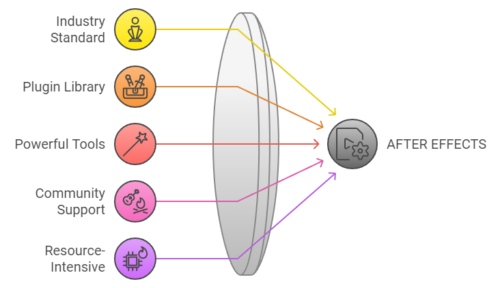
- Industry standard for motion design and visual effects.
- Huge library of plugins and integrations.
- Powerful tools for compositing, keyframing, and animation.
- Supports both 2D and limited 3D animations.
- Large community and extensive tutorials.
After Effects Cons:
- Can be overkill for simple animations.
- Resource-intensive, often requiring a powerful computer.
- Subscription-based, which can be costly over time.
- Not real-time, so renders can be slow depending on the project size.
2. Rive
- Best For: Real-time interactive animations, especially for web and apps.
Rive is having gaining every day new happy users. This web based designer application allows to create smooth interactive animations. In some ways, it wants to take the place occupied in recent years by After Effects with the Lottie plugin. The animations created in the Rive App, can be used in a growing number of client applications.. websites, mobile apps, unreal, games, Figma,… the basic membership is free, while you need to pay for more advanced or team functionalities.
Rive Pros:
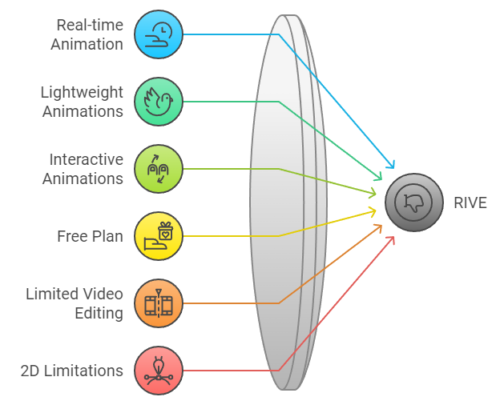
- Focused on real-time animations for interactive platforms like websites, apps, and games.
- Lightweight animations, which can be exported as code (WebGL, Flutter, etc.).
- Allows live, interactive animations that respond to user inputs.
- Free plan available, with paid pro options.
Rive Cons:
- Not suitable for complex video editing, VFX, or compositing.
- Limited to 2D animations.
- Smaller community compared to After Effects.
3. Cavalry
- Best For: Procedural motion design and data-driven animations.
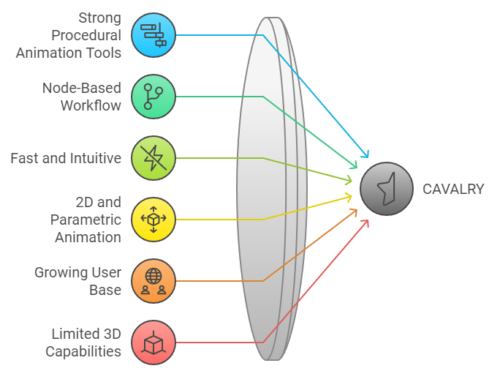
Cavalry has been around for some years and is steadily growing. The base code is more recent and optimized compared to After effects. If you feel that 2D procedural animation is your thing, Cavalry might be your best choice, with faster previews and internal functionalities that are only available through external plugins in After Effects.
It is completely vector based, and you will surely appreciate the possibility to import SVG images, while this is not possible in After Effects.
Cavalry Pros:
- Strong procedural animation tools that allow you to create complex animations with minimal effort.
- Node-based workflow, ideal for data-driven design.
- Fast and intuitive, with real-time feedback, which is great for iteration.
- Can handle both vector-based 2D animations and more complex parametric animations.
Cavalry Cons:
- Still growing its user base and learning resources.
- While it has some 3D capabilities, it’s not as robust as dedicated 3D software.
- Less well-known and not as universally adopted as After Effects.
Conclusion:
- After Effects is ideal for general motion design, visual effects, and any work that requires a wide range of tools and compositing features. It’s perfect for freelance projects that need versatility. As a freelance motion designer, this is still a compulsory tool to find a decent number of clients.
- Rive excels in interactive and lightweight animations for web and app platforms, and is great if you’re working with developers to create real-time animations. If you are old enough, you may remember Flash was doing similar things. Well, it looks that Rive is doing it better.
- Cavalry is perfect if you want a more procedural approach to motion design, particularly for data-driven or parameterized animations.
What is the Best tool for Commercial Projects?
When it comes to money, and not only technical aspects, we need to consider how many designers use rive and Cavalry. In big studios and Agency, all of the designers know After Effects and it could be tough to use new applications, whose formats are not compatible with the industry standard. This will change overtime, as more specific projects will be done with the tool that works best, but for the moment, After Effects rules.
 Building a Career in Data Visualization: Opportunities, Trends, and Why It’s Never Too Late to Pivot
 The 2025 EV Market Shake-up: Visualizing the Data Story
 Turning Numbers into Art: How We See and Feel Data in 2026
 Data Story Maker: Professional Data Visualization for Premiere Pro and After Effects
 AFTER EFFECTS vs RIVE vs CAVALRY
-
 Motion News2 years ago
AFTER EFFECTS vs RIVE vs CAVALRY
-
 Tutorials6 years ago
3D Animated Infographics in After Effects and Rotobrush 2 Tutorial
-
 Tutorials4 years ago
How to track real estate and callouts in Adobe After Effects
-
 Motion News3 years ago
CapCut vs Premiere Pro: The Ultimate Video Editing App Showdown
-
 Tutorials3 years ago
How to export mp4 videos from After Effects | 3 methods to export
-

 Motion News2 years ago
The New 2D Text Box Preset in After Effects
-

 Motion News2 years ago
Managing ADHD for Creative Designers
-
 Motion Graphics7 years ago
Illustration for Motion